
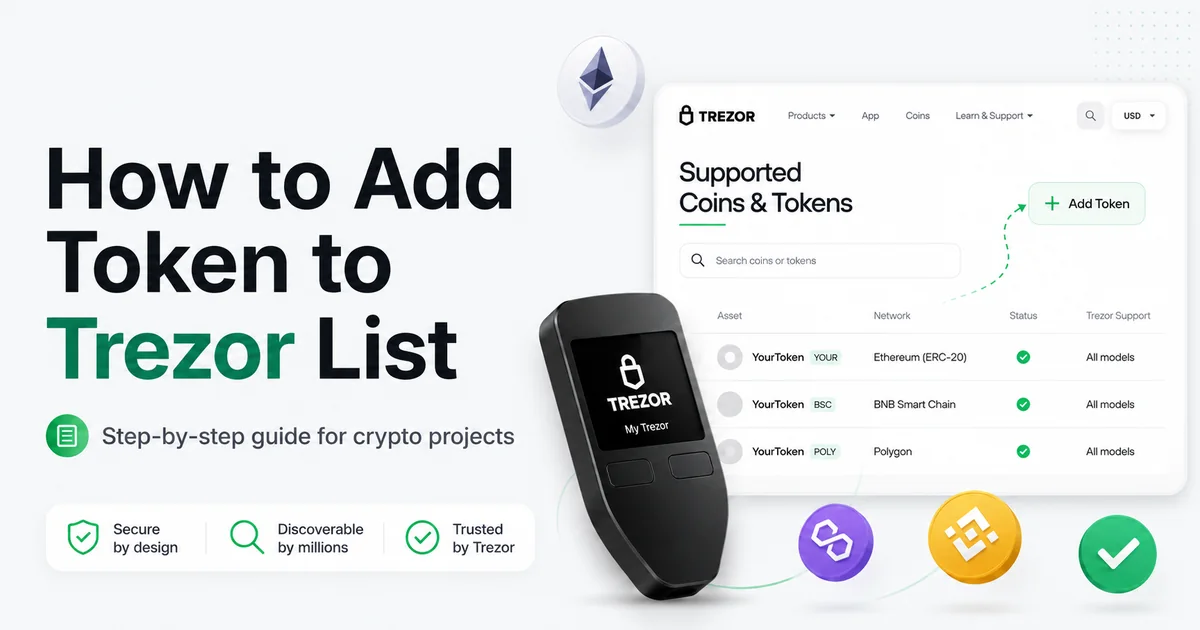
An accepted CoinGecko listing is mandatory for native token recognition in Trezor Suite and on the Trezor Coins webpage. It also supplies the native logo, market price, and public asset data. Without CoinGecko, users may still manage a contract token on a supported network. However, Trezor Suite may keep that asset under Unrecognized tokens. A GitHub contribution provides separate metadata and cannot replace CoinGecko. CoinMarketCap, audits, and support requests cannot replace it either.
Updated: July 20, 2026.
Understand What a Trezor Token Listing Requires
Required Route: CoinGecko for Native Trezor Recognition
The public Trezor coins and tokens directory uses a generated dataset. Trezor’s current coin-details generator skips token entries without a CoinGecko identifier. Furthermore, Trezor Suite’s current icon script downloads token images through CoinGecko. Trezor Support confirmed that CoinGecko is also required for native Suite display and recognized status. Therefore, obtain an accepted CoinGecko listing before expecting a native logo, market price, or public asset page.
Optional Route: GitHub External Definitions
Trezor devices can load signed external definitions for EVM tokens using a chain ID and contract address. The official external-definitions documentation describes this technical pipeline. This pipeline may import eligible metadata from the community-maintained Ethereum Lists repository. However, a merged JSON file does not remove Suite’s Unrecognized token label. It also does not create a Coins page, native logo, or market price. Therefore, treat GitHub as a separate metadata contribution, not an alternative listing route.
Which Token Networks Does Trezor Support?
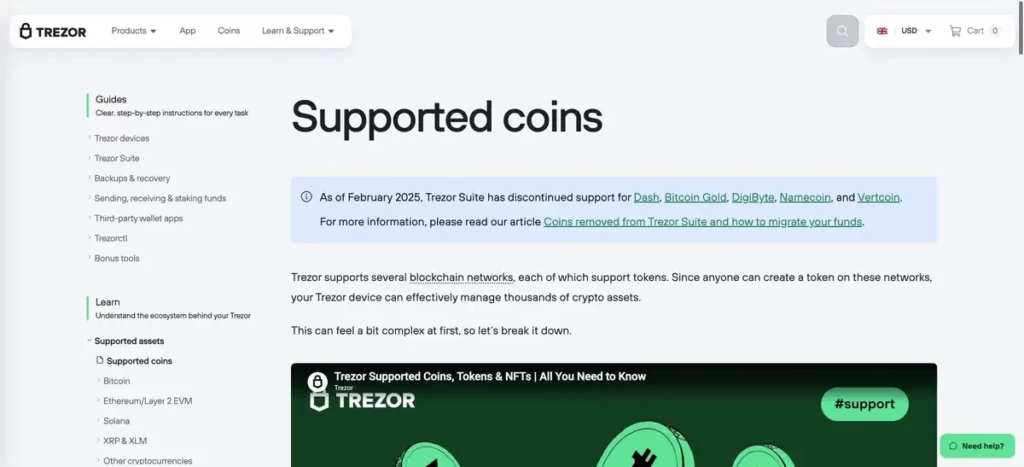
Network support does not mean that every contract token receives native recognition. Users may manage an unrecognized token on a supported network. However, CoinGecko remains mandatory for native recognition, logo, price, and the public Trezor Coins page.
EVM Token Networks in Trezor Suite
Trezor Suite currently supports tokens on Ethereum, Polygon PoS, BNB Smart Chain, and Arbitrum One. It also supports tokens on Base, Optimism, Avalanche C-Chain, and Ethereum Classic.
- Ethereum — chain ID
1. - Polygon PoS — chain ID
137. - BNB Smart Chain — chain ID
56. - Arbitrum One — chain ID
42161. - Base — chain ID
8453. - Optimism — chain ID
10. - Avalanche C-Chain — chain ID
43114. - Ethereum Classic — chain ID
61.
The official Suite network configuration provides the current technical source. The GitHub process below applies to these EVM tokens when the matching network folder exists. However, always confirm the current network configuration before preparing a contribution.
Solana Tokens on Trezor
Trezor Suite supports SPL and Token-2022 assets. However, their definitions come from CoinGecko. Therefore, do not submit a Solana mint to the Ethereum Lists EVM token repository.
Tron, Cardano, and Stellar Tokens
Trezor Suite supports TRC-20 tokens and Stellar assets. Cardano tokens currently have view-only support. TRC-10 tokens are not supported. Furthermore, these networks use different metadata pipelines. Consequently, token owners should not place these identifiers inside the Ethereum Lists EVM folders.
Third-Party EVM Networks
Trezor devices can sign transactions on additional EVM networks through compatible third-party wallets. However, this capability does not create native Trezor Suite support or a public asset card.
Prepare Token Information for an Optional GitHub Definition
Collect Canonical Token Details
Collect every value from the verified contract and official project sources before opening GitHub.
- Exact on-chain token name and symbol.
- EIP-55 checksum contract address.
- Token decimals as an integer.
- Blockchain name, network folder, and chain ID.
- Official website and project-domain support email.
- Official social links and stable logo URL.
- An accepted CoinGecko listing and correct CoinGecko ID for native Trezor recognition.
- CoinMarketCap and audit links as general evidence only; they cannot replace CoinGecko.
Do not simplify the symbol for branding. The JSON symbol must match the contract exactly. Likewise, decimals must remain a JSON number, not a quoted string.
Prepare the Token Logo
Prepare a square transparent PNG, preferably 128 by 128 pixels, when contributing optional repository metadata. Keep it lightweight and publish it at a stable HTTPS address controlled by the project. However, the Ethereum Lists logo field does not control the native Trezor Suite icon. For native display, maintain the correct logo on the token’s accepted CoinGecko page.
Confirm the CoinGecko Record
Confirm that the token has an accepted CoinGecko page. Also verify its network and checksum contract against the blockchain explorer. Use Tokpie’s CoinGecko listing guide when the asset remains unlisted. If the token appears only on CoinMarketCap, do not request a manual Trezor whitelist. Likewise, do not submit a GitHub request solely to remove the Unrecognized token label. Obtain the CoinGecko listing first. Tokpie’s CoinMarketCap guide explains that separate tracker process. However, CoinMarketCap cannot replace CoinGecko for native Trezor recognition.
Can You Add a Token to Trezor Without a CoinGecko ID?
You can use and manage a contract token on a supported network without CoinGecko. However, Trezor Suite may keep it under Unrecognized tokens. CoinGecko is mandatory for native recognition, the Suite logo and price, and the public Trezor Coins page. Trezor Support confirmed that it cannot provide a manual exception.
Our CoinMarketCap-Only Test
In July 2026, we tested whether a CoinMarketCap-listed project could obtain native Trezor recognition without CoinGecko. The project supplied verified token details, two independent audits, and a valid CoinMarketCap page. It also opened Ethereum Lists pull request #1040. Next, we contacted Trezor and requested removal of the Unrecognized token status.
Example of Communication With Hal
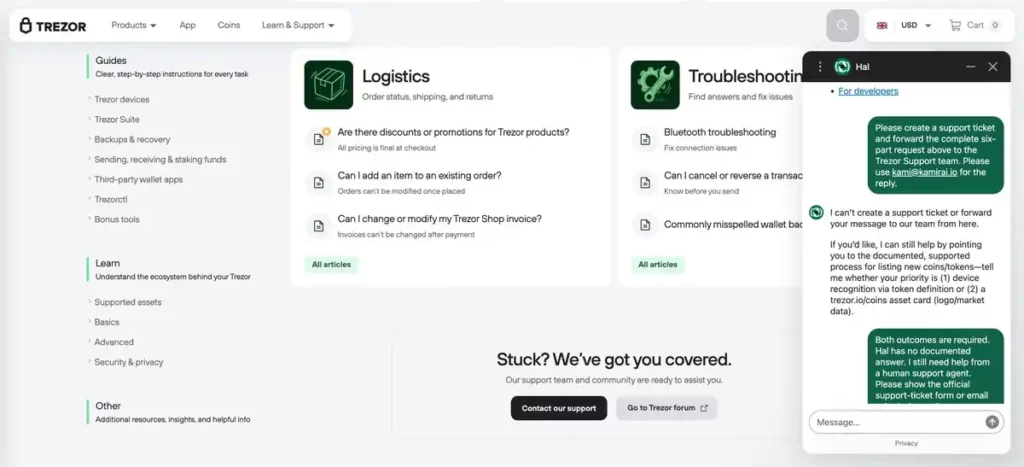
We first used Trezor’s Hal assistant and escalated the question to a human agent. This step tested whether support offered a non-CoinGecko route. Never share a wallet backup, seed phrase, private key, password, or authentication code in a support chat.
What Trezor Support Confirmed
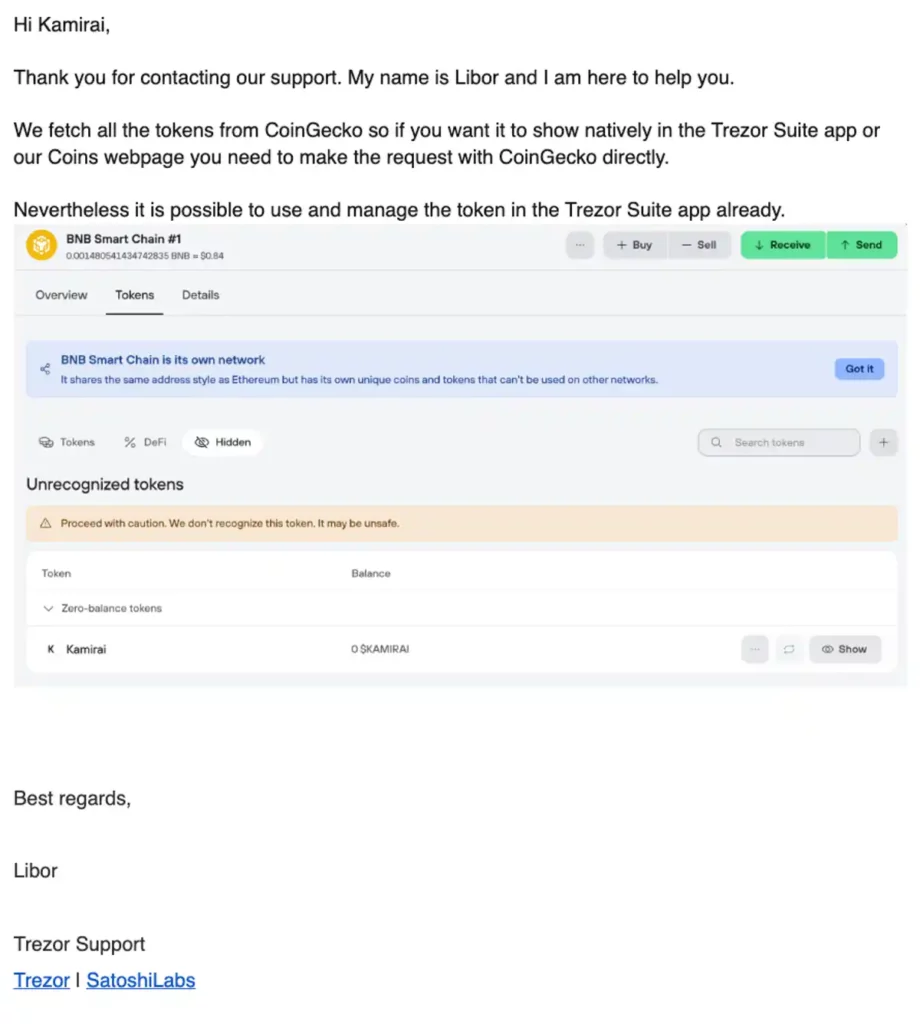
“We fetch all the tokens from CoinGecko, so if you want it to show natively in the Trezor Suite app or our Coins webpage you need to make the request with CoinGecko directly. Nevertheless it is possible to use and manage the token in the Trezor Suite app already.”
Trezor Support response, July 2026
“As I mentioned we cannot do this from our side. It is necessary for you to proceed direclty with CoinGecko.”
Trezor Support follow-up after the request to remove the Unrecognized status
The Practical Conclusion
Do not spend time requesting a manual Trezor exception for a CoinMarketCap-only token. We tested this route, but it did not work. CoinMarketCap, audits, and an Ethereum Lists pull request cannot remove the Unrecognized token label. Therefore, apply to CoinGecko first.
What the GitHub Contribution Can Still Do
For a compatible EVM network, an Ethereum Lists contribution may still supply external-definition metadata. It does not create native Suite recognition, a Coins page, a native logo, or a price. Continue with the GitHub steps below only for this limited technical purpose.
Optional: Add an EVM Token to the Correct GitHub Directory
Step 1: Open Ethereum Lists Tokens
Open the Ethereum Lists token repository while signed into GitHub. The repository name mentions Ethereum, but it contains separate directories for many EVM networks. Then, read the current repository instructions because validation rules can change.
Step 2: Open the Correct Network Folder
For a BNB Smart Chain token, open the tokens/bsc directory. Never place a BEP-20 token inside tokens/eth, because that folder represents Ethereum mainnet. For another EVM network, identify its exact folder before creating any file.
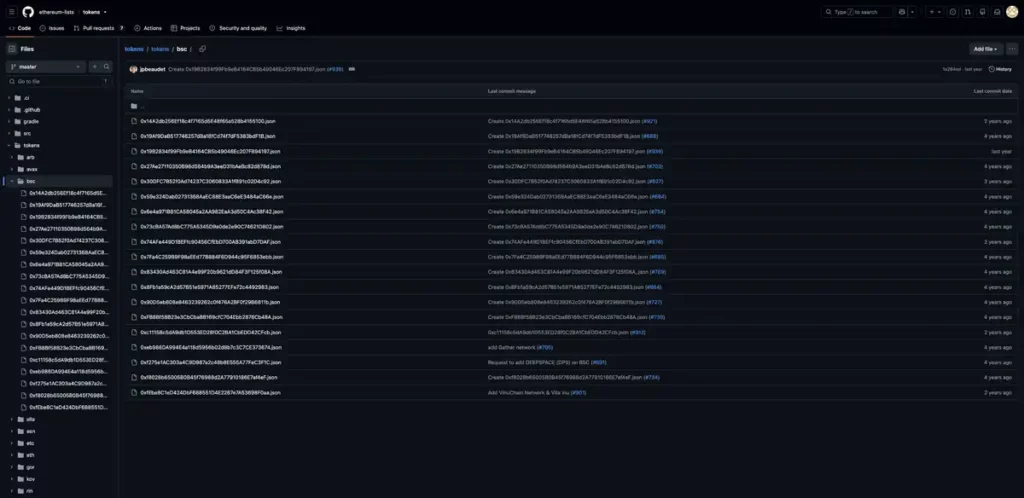
Step 3: Search for an Existing Contract File
Search the repository for the complete contract address before creating a new record. GitHub may paginate large folders. Therefore, visual browsing alone can miss an existing file. If the address already exists, update the accurate record instead of creating a duplicate.
Step 4: Create the EIP-55 Checksum Filename
Convert the contract to EIP-55 mixed-case format using a trusted checksum method. The filename and JSON address must use the same checksum address. Next, append .json without spaces, labels, or additional characters. Tokpie’s original checksum-address reference remains available for returning readers.
tokens/bsc/0xChecksumContractAddress.jsonStep 5: Fork the Repository and Create a Branch
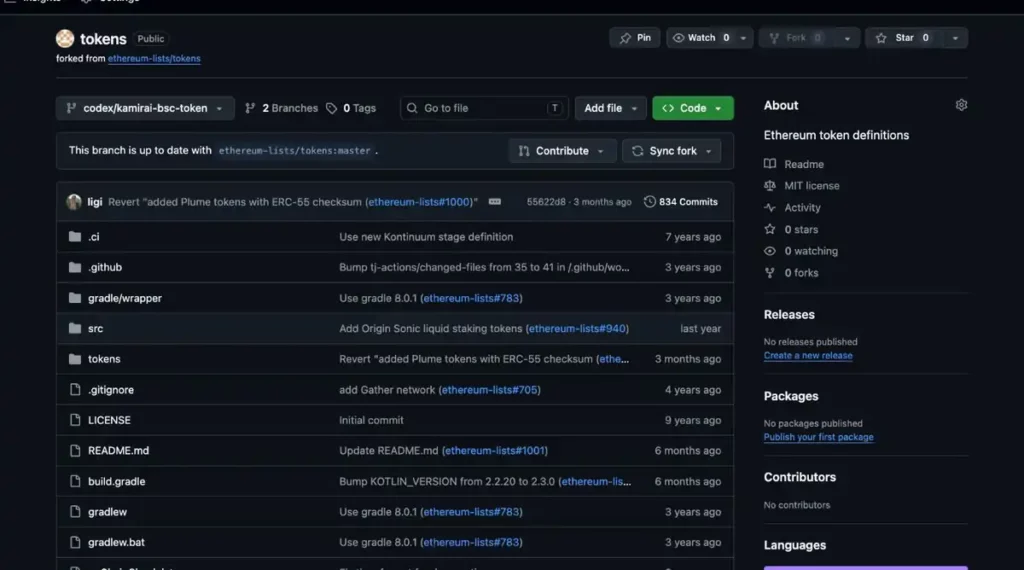
Open the official fork page, choose your GitHub account, and create a personal copy. If GitHub offers Copy the master branch only, leave that option selected. Next, open your fork, select the Branches page, and choose New branch. Use a short name, such as add-bsc-token-symbol, and create it from master. Finally, confirm the branch belongs to your fork before adding the JSON file.
Step 6: Create the Token JSON File
Open your fork, switch to the prepared branch, and open the correct network directory. Select Add file, then choose Create new file. Enter the complete EIP-55 checksum address as the filename, followed by .json. Next, paste the verified JSON into GitHub’s web editor. Open GitHub’s preview view and inspect every added line. Do not select Commit changes until Step 7 confirms every value.
Start with the required values. Then, add only supported and verified optional metadata.
{
  "symbol": "TOKEN",
  "name": "Token Name",
  "address": "0xChecksumContractAddress",
  "decimals": 18,
  "type": "BEP20",
  "website": "https://example.com/",
  "logo": {
    "src": "https://example.com/token-logo-128.png",
    "width": "128",
    "height": "128"
  },
  "support": {
    "email": "[email protected]",
    "url": "https://example.com/support"
  },
  "social": {
    "github": "https://github.com/example/project",
    "telegram": "https://t.me/example",
    "twitter": "https://x.com/example"
  }
}
Required JSON Fields
symbolmust match the contract’s on-chain symbol exactly.namemust contain the official token name.addressmust use the EIP-55 checksum format.decimalsmust be an integer, not a string.
Use Only Supported Optional Fields
For BSC, type can use BEP20. The repository also accepts selected project fields. Useful fields include website, logo, support, and supported social properties. However, omit empty objects and never invent missing project information. Next, compare every field with the repository’s current models and field constants.
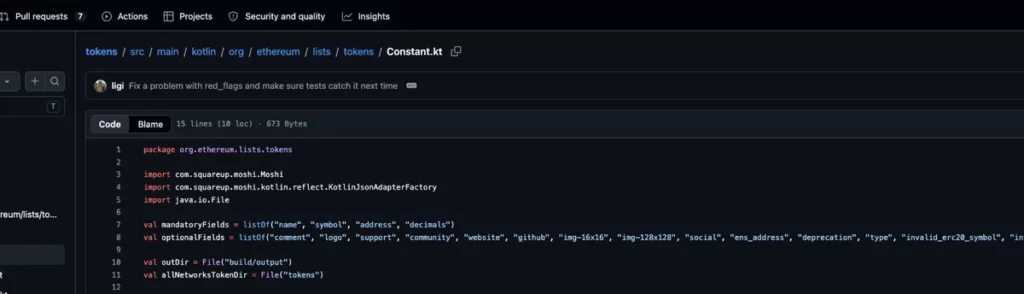
Do Not Add Unsupported Price Fields
Do not add chainId, logoURI, coinmarketcap, audits, explorer, or fixed-price fields. Instead, place tracker pages, explorer links, and audit evidence inside the pull-request description.
Step 7: Validate the JSON and On-Chain Values
Check the JSON syntax before committing. One missing comma can stop every automated check. Next, compare symbol() and decimals() against the live contract on the correct network. Then, confirm the checksum filename matches the address field character for character. The repository’s current automated workflow performs schema and on-chain checks. Also confirm that deployed bytecode exists and the explorer shows the same checksum address.
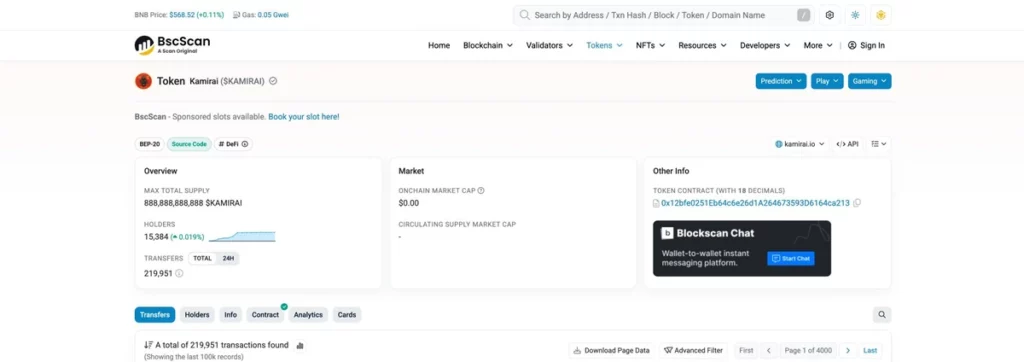
Step 8: Commit Only the Token File
First, open Preview and confirm the diff adds only your checksum-named JSON file. Next, select Commit changes… to open GitHub’s commit dialog. Enter a concise message. For example, use Add TOKEN token on BSC. Leave the optional extended description empty unless reviewers need a short clarification. Select the option beginning Commit directly to, followed by your dedicated branch name. Do not select Create a new branch for this commit and start a pull request. Then, select Commit changes and wait until GitHub opens the saved file.
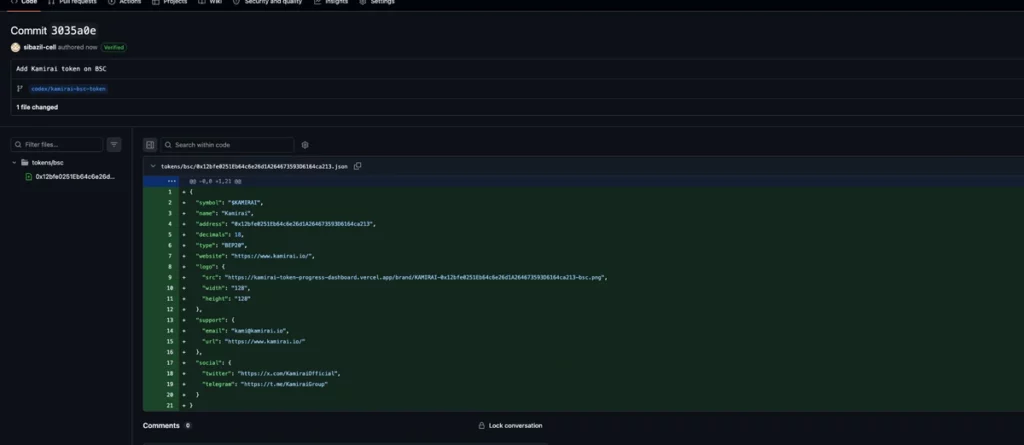
Verify the Saved Commit
Confirm the path, checksum filename, and selected branch before continuing. Open the commit page and verify it reports one changed JSON file. Finally, compare the committed content with your reviewed JSON before opening the pull request.
Step 9: Open the Pull Request
Check the Pull Request Comparison
Open the compare page from your fork’s committed branch. Set the base repository to ethereum-lists/tokens and the base branch to master. Set the head repository to your fork and select your dedicated compare branch. Continue only when GitHub reports Able to merge and shows one intended file.
Complete the Pull Request Form
Use a concise title. For example, use Add TOKEN on BSC. Then, include the explorer, website, CoinGecko, CoinMarketCap, and audit links in the description. If CoinGecko is unavailable, explain that fact only as project context. Do not present a support ticket or CoinMarketCap page as a substitute. This pull request can contribute repository metadata, but it cannot create native Trezor recognition. Select Preview, review the rendered description, and keep Allow edits by maintainers enabled. Finally, select Create pull request.
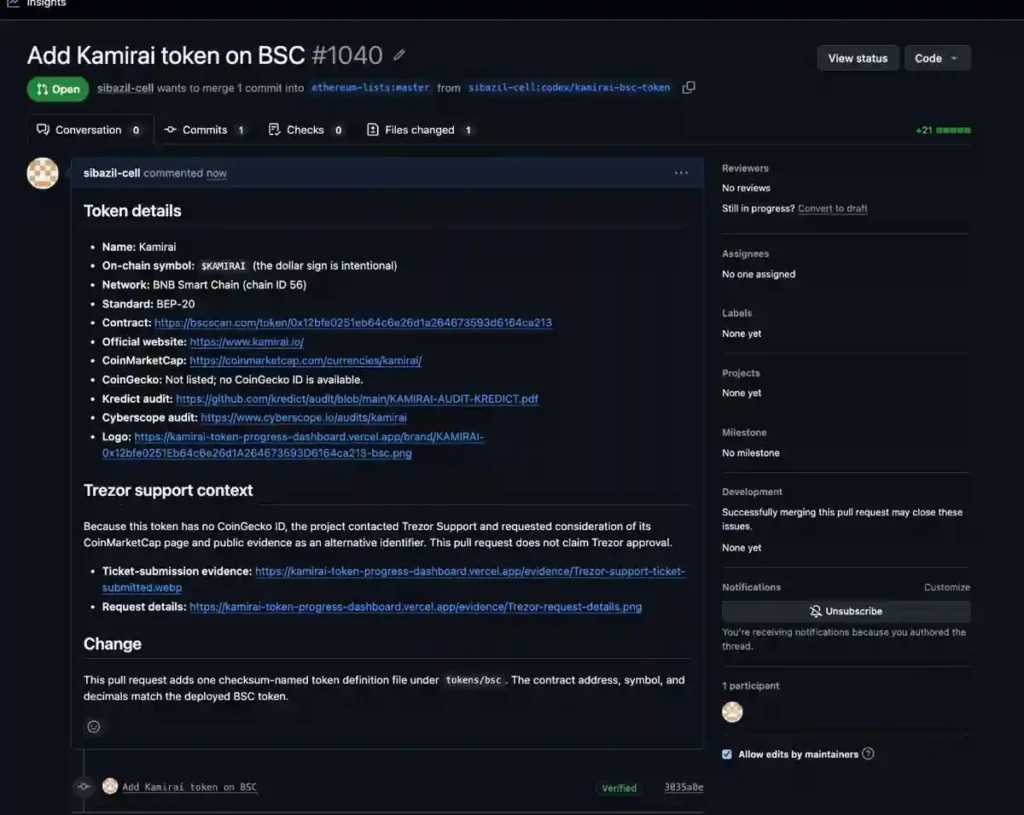
Verify the Open Pull Request
Confirm the new request is Open and targets the correct base branch. A compact example may show one commit, one file, 21 additions, and zero deletions. Your numbers may differ when supported optional fields change the JSON length. The workflow may display Awaiting approval until a maintainer authorizes its first run. This waiting state is not a validation failure, so do not open a duplicate request.
Step 10: Monitor Checks and Maintainer Feedback
When Workflow Approval Is Required
First, review the pull request’s merge information and Checks tab. A new public-fork request may show One workflow awaiting approval. Only an upstream maintainer can authorize that workflow’s first run. This waiting state is not a failed check and requires no corrective commit. Therefore, do not post pressure comments, push empty commits, or open another request.
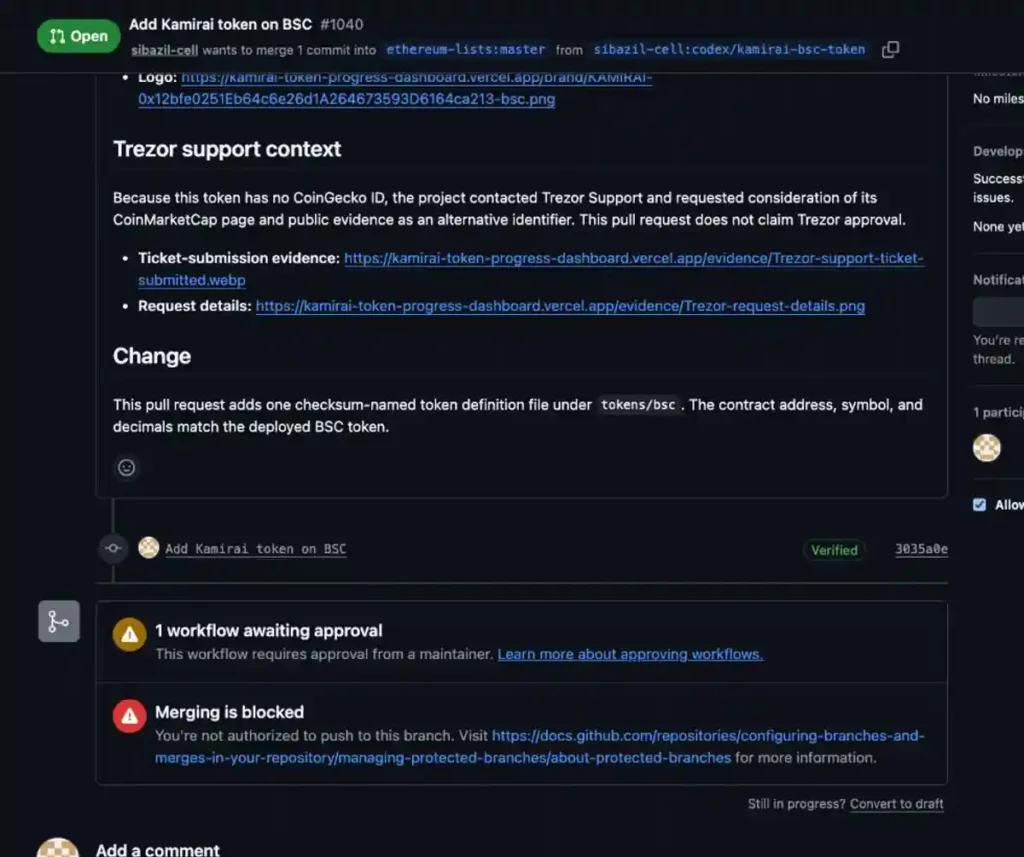
After the Checks Start
After approval, wait for every required job to finish. If a job fails, open its log and identify the exact failing rule. Then, correct that issue on the same branch and push one focused commit. A green check confirms automated validation, but it does not confirm maintainer approval. Next, answer maintainer questions and update the same branch when corrections are requested. The repository can mark inactive requests as stale. Therefore, respond promptly to legitimate feedback.
Verify the External Definition After a GitHub Merge
Check the Signed External Definition
Trezor imports merged EVM records and later creates signed binary external definitions. Therefore, a merge and a published definition are separate milestones with different timing. Check the expected data endpoint using the network chain ID and lowercase contract address. A successful endpoint confirms only the external definition. It does not confirm native Suite recognition or a public Coins page.
https://data.trezor.io/firmware/definitions/eth/chain-id/CHAIN_ID/token-lowercase_contract.datCheck Trezor Suite
Open the correct network account and review the token under the Tokens section. Confirm the contract, name, symbol, decimals, balance, and spam status before reporting success. However, a token without CoinGecko may remain under Unrecognized tokens after the GitHub merge. This result does not mean the external-definition file failed. Never send funds only to test branding. Use a safe existing balance when possible.
Check the Public Card, Logo, and Price
Search the token on trezor.io/coins only after CoinGecko accepts the asset and Trezor refreshes its datasets. Then, verify the logo, price, network, wallet availability, and linked market information. A GitHub merge cannot create this public card. Therefore, fix missing or incorrect market data through the accepted CoinGecko record.
How Long Does It Take to Add a Token to Trezor?
If CoinGecko already lists the token, native Trezor display depends on downstream data refreshes. Trezor publishes no guaranteed completion deadline. Therefore, allow several days before checking the Suite and Coins page again. CoinGecko approval follows its own process and may take much longer. Without an accepted CoinGecko listing, waiting or contacting Trezor Support will not complete native recognition. The optional GitHub route has separate timing. In our 24-month dataset, successful token pull requests had a 22.3-hour median merge time. However, review remained unpredictable, and some requests stayed open for months.
Ethereum Lists Token Pull Request Statistics: Last 24 Months
A public GitHub audit on July 19, 2026 reviewed 118 pull requests in the community-maintained ethereum-lists/tokens repository. The review identified 69 token-related community requests created during the previous 24 months. Twenty-one were merged, 43 closed without merge, and five remained open. Therefore, 30.4% were merged, 62.3% closed without merge, and 7.2% remained open. However, these outcomes measure repository contributions, not native Trezor listings. GitHub cannot confirm that each contributor legally owns the submitted token. It also does not classify every unmerged closure as a rejection. Automation closed 36 inactive requests, authors closed six, and one was closed by a maintainer.
Results for token-related community pull requests opened during the measured 24-month period.
| Outcome | Requests | Share | Meaning |
|---|---|---|---|
| Merged | 21 | 30.4% | Accepted into the community repository |
| Closed without merge | 43 | 62.3% | Not merged, but not necessarily rejected by a maintainer |
| Still open | 5 | 7.2% | Waiting for review, changes, or another repository action |
Public GitHub snapshot taken July 19, 2026. Cohort: token-related pull requests created from July 19, 2024 through July 19, 2026. All 118 repository pull requests from this period were reviewed.
Common Trezor Token Submission Mistakes
- Using the Ethereum folder for a BNB Smart Chain token.
- Changing the on-chain symbol into a cleaner marketing ticker.
- Writing decimals as a string instead of an integer.
- Adding unsupported CoinMarketCap, audit, explorer, or price fields.
- Assuming a green check means the pull request was approved.
- Assuming a merged JSON logo controls the Trezor Suite icon.
- Expecting CoinMarketCap, audits, GitHub, or support to replace an accepted CoinGecko listing.
- Opening duplicate requests instead of updating the original branch.
Trezor Token Listing FAQ
Does a Merged JSON Guarantee a Logo and Price?
No. The Ethereum Lists logo field does not replace Trezor’s CoinGecko-based icon and market pipelines. A merge also cannot remove the Unrecognized token label.
Can CoinMarketCap Replace CoinGecko?
No. Trezor Support confirmed that CoinMarketCap cannot replace CoinGecko for native recognition. Audits and a GitHub pull request cannot replace it either.
Can I Use a Token in Trezor Suite Without CoinGecko?
Often, yes. Users can manage a contract token on a supported network. However, Suite may display it under Unrecognized tokens without a logo or market price.
Can Any Token Owner Use Ethereum Lists?
No. This workflow applies to compatible EVM token networks represented by repository folders.
Does “Closed” Mean “Merged” on GitHub?
No. Confirm the pull request displays the purple Merged state and an upstream merge commit.
Build Token Visibility After Trezor
A wallet contribution is only one part of a wider token-discovery plan. For example, Tokpie explains exchange listing and token listing and fundraising services. Furthermore, the Tokpie Telegram channel shares ecosystem updates and practical announcements.
Wallet, Explorer, and DEX Guides
- Add a token logo to Uniswap.
- Add a token to Ledger.
- Add a token to Trust Wallet.
- Add a token to the MEW default list.
- Add a token logo to MetaMask.
- Display a token price in MetaMask.
- Update token information on BscScan or Etherscan.
- Display token price and market cap on explorers.
- Grow token liquidity on PancakeSwap and Uniswap.
Coin Tracker Listing Guides
- Blockspot token listing guide.
- CoinCost token listing guide.
- DigitalCoinPrice token listing guide.
- LiveCoinWatch token listing guide.
- CoinCheckup token listing guide.
- CoinDataFlow token listing guide.
- TokenInsight token listing guide.
- BitDegree token listing guide.
- Coindar token listing guide.
- CoinLore token listing guide.
- CoinPaprika token listing guide.
- Coinranking token listing guide.
- CoinCarp token listing guide.
- CoinCodex token listing guide.
- Top coin trackers offering free submissions.
Blockchain-Specific Token Guides
- List an Arbitrum token.
- List a Polygon token.
- List a Solana token.
- List a TON token.
- List a TRC-20 token.
- List a Base token.
Exchange, Growth, and Market Data Guides
- List a token on Coinbase.
- List a token on Binance.
- Use token voting platforms.
- Add card and Apple Pay token purchases.
- Understand circulating token supply.
- Update circulating supply on CoinMarketCap.
- Outsource tracker listing and liquidity work.
- Improve token sale confidence.
- Build a successful cryptocurrency project.
- Use AI for a cryptocurrency project.
- Review cryptocurrency trends and predictions.
Legacy Trezor Submission Screenshots
The interface has changed since the original guide. However, these archived images remain useful historical references.
- Original Trezor overview screenshot.
- Original checksum filename screenshot.
- Original create-file screenshot.
- Original propose-file screenshot.
- Original pull-request screenshot.
- Second original pull-request screenshot.
- Original pending-checks screenshot.
- Original passed-checks screenshot.
- Original request-status screenshot.
- Original coming-soon asset screenshot.
Final Trezor Token Submission Checklist
- Obtain an accepted CoinGecko listing before expecting native Trezor recognition.
- Confirm CoinGecko shows the correct network, contract, logo, and market data.
- Confirm the exact on-chain symbol, decimals, network, and checksum contract.
- Use the correct EVM network directory only when making an optional external-definition contribution.
- Search for an existing contract record.
- Add only fields supported by the repository schema.
- Validate JSON syntax and on-chain values.
- Open one focused pull request and monitor its checks.
- Verify the signed definition after merge.
- After dataset refreshes, verify the public Trezor page, native icon, price, and recognized status.
- Do not request a manual Trezor exception when CoinGecko has not listed the token.
Finally, record the CoinGecko page, pull request, merge, and published Trezor result as separate evidence.