

Are you ready to start trading cryptocurrency efficiently and securely? Tokpie provides a reliable platform for both beginners and seasoned traders. Follow this comprehensive guide to begin your journey on Tokpie and maximize your trading experience.
Account Creation
Creating your Tokpie account is straightforward and hassle-free. Here’s how you can quickly set up your account:
- Visit the official Tokpie registration page.
- Enter your email address and agree to the Terms of Use and Privacy Policy.
- Solve the Captcha, then click “Register.”
- You will receive an activation email shortly after.
- If you can’t locate the email, check your spam folder or contact Tokpie support.
- Click the confirmation link provided in the activation email.
- Receive your login credentials via email, including an automatically generated password.
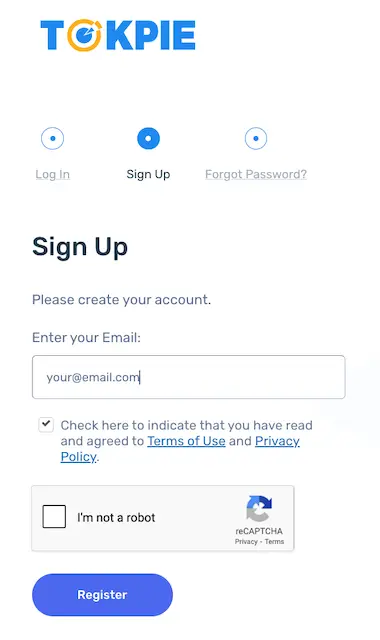
Congratulations! Your account is now ready for trading.
How to secure my account?
Ensuring your account’s security is crucial. To enhance safety:
- Log in and immediately change the automatically generated password.
- Select a robust password with at least 12-14 characters, mixing uppercase, lowercase, numbers, and special symbols.
By taking these steps, you’ll significantly reduce risks and protect your assets.
How to verify my account?
Verifying your account expands your trading capabilities. Simply:
- Log into your account.
- Complete your profile information accurately.
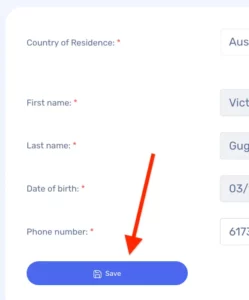
Once verified, you’ll enjoy higher deposit and withdrawal limits and a smoother trading process.
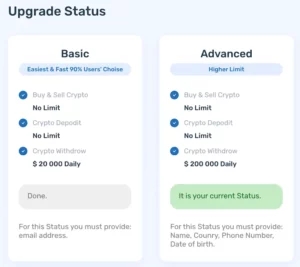
How to pass KYC?
If your daily withdrawal needs exceed $200,000, you’ll need to pass the KYC (Know Your Customer) process:
- Provide the required identification documents as prompted.
- Wait for the verification team’s confirmation (usually within 24 hours).
Once completed, higher transaction limits will be immediately accessible.
Depositing to Tokpie
Funding your Tokpie account is essential to start trading. Follow these three simple steps:
Time needed: 1 minute
Fund account on Tokpie
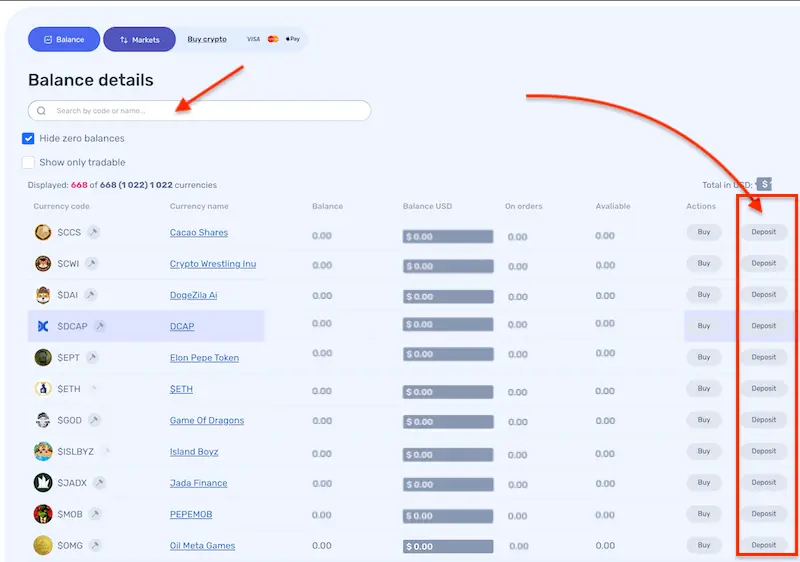
- Select asset for depositing.
Log in and navigate to the Balance tab. Then, search for your preferred cryptocurrency and click “Deposit.”
- Choose blockchain.
Choose the appropriate blockchain network (ERC20, BEP20, Solana, BASE, or another) and press the “Generate new address” button.
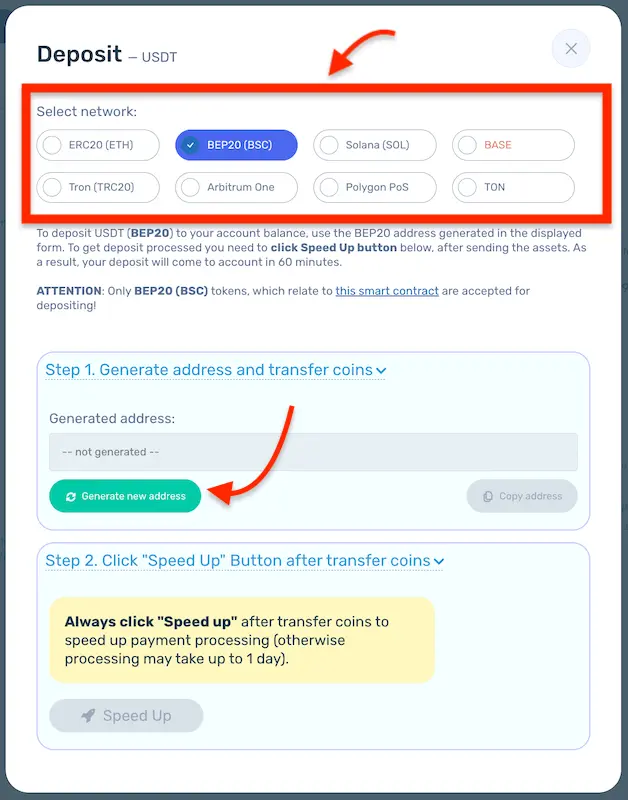
- Send asset.
Copy your unique deposit address. Then transfer funds from your external wallet to this deposit address. After sending assets, press the Speed Up button.
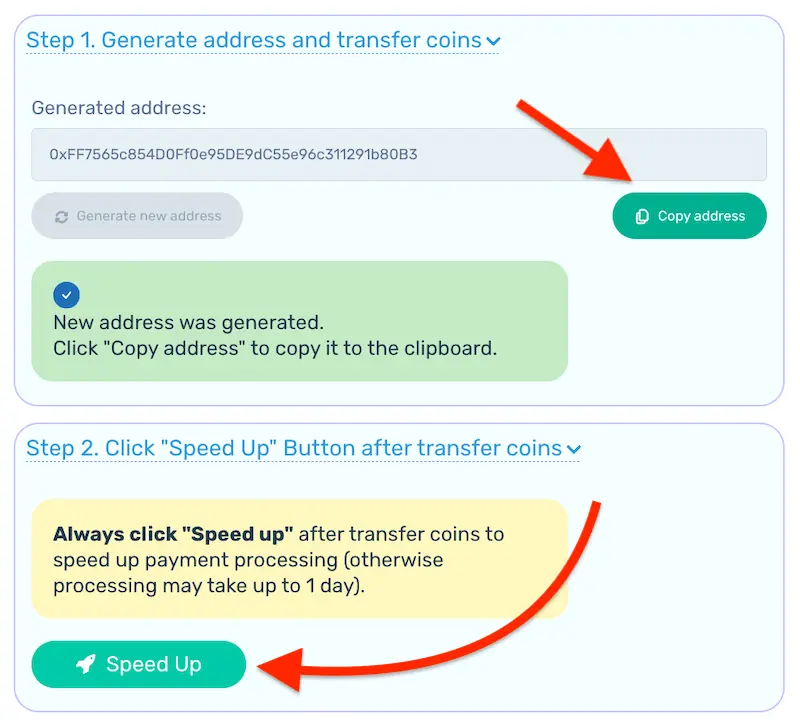
Tokpie does not charge deposit fees, making it convenient and cost-effective.
How long does it take to deposit?
Typically, deposits are processed within 65-120 minutes. For faster processing:
- Use the “Speed Up” feature available on your deposit page.
- If delays persist beyond 130 minutes, promptly reach out to Tokpie support.
How to buy cryptocurrency with a Bank Card
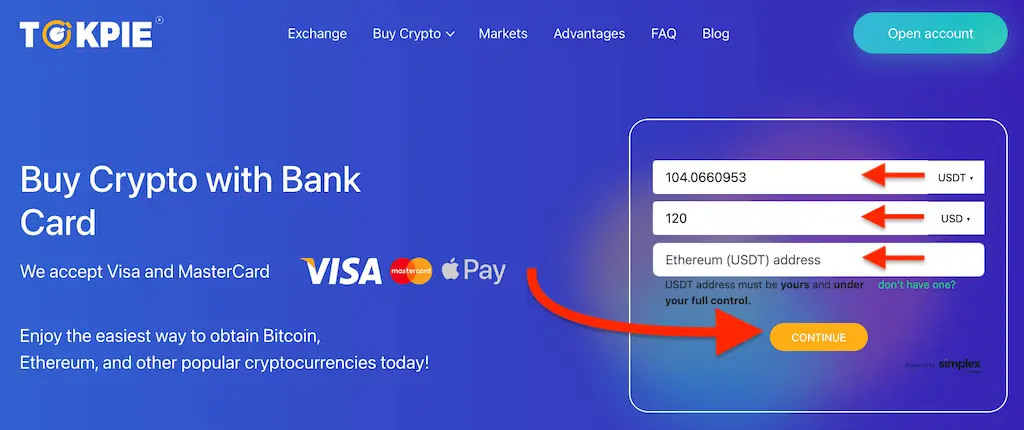
Use your bank card or Apple Pay to easily purchase cryptocurrencies available on Tokpie with your local fiat currency. But, first of all, check the list of counties where cards will not work.
- Log in to your Tokpie account and generate a USDT deposit address by clicking the [+ Deposit] button.
- Enter this generated address on the bank card payment page, specify the amount of USDT you wish to buy, and click Continue.
- Once you receive a confirmation email and the USDT funds appear in your account, navigate to the Market section, select your desired cryptocurrency, click Trade, and complete your purchase.
Trading on Tokpie
With your account funded, you’re ready to trade. Tokpie offers an intuitive and robust trading interface.
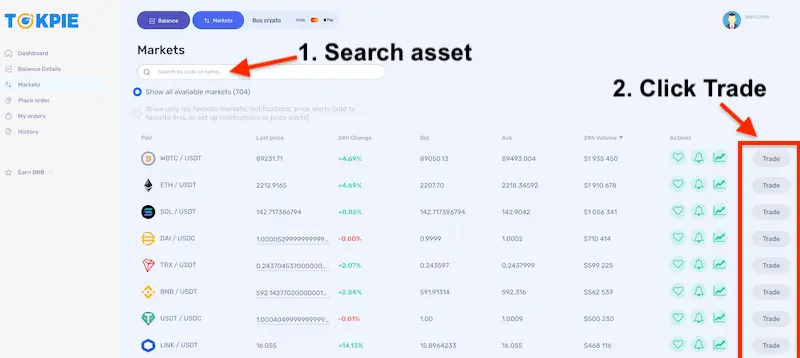
Select the market
Choose your desired trading pair from the markets page.
- Enter the coin or token name in the search bar.
- Then, click on the Trade button.
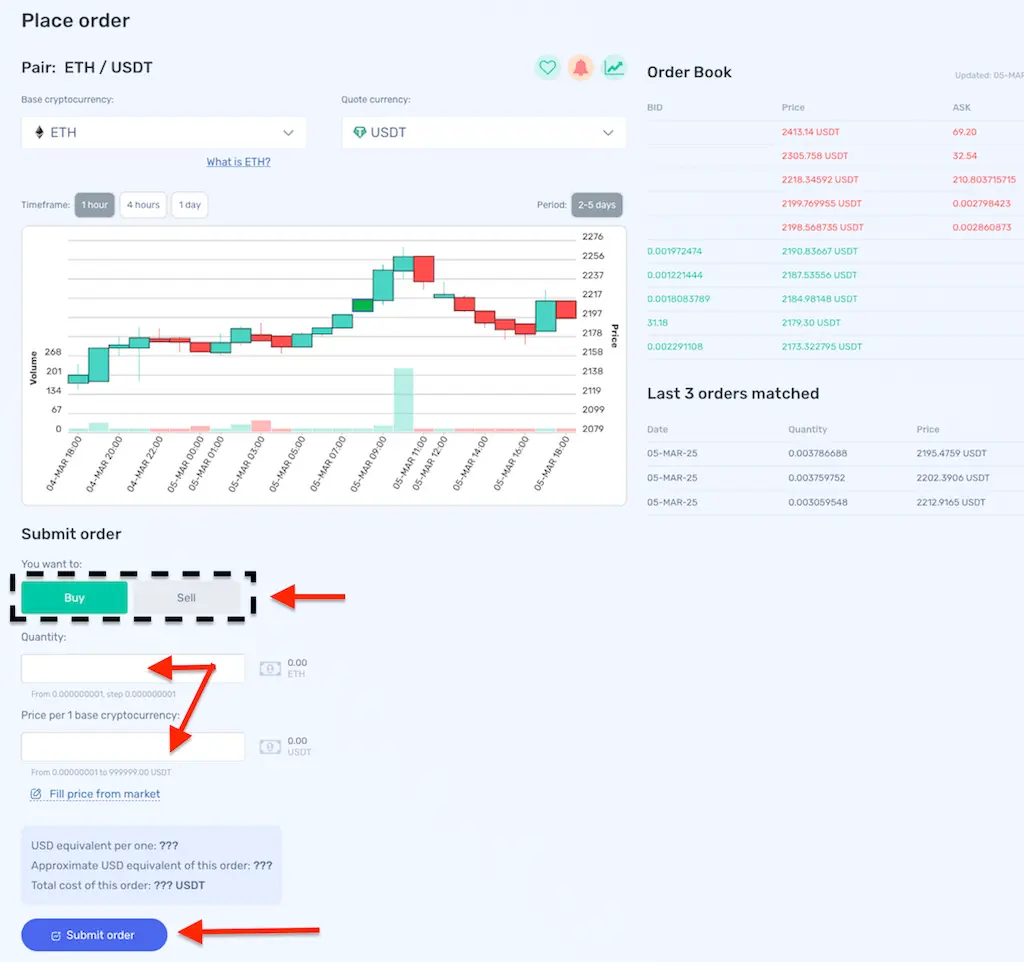
Submit a trade order
In the Order Book window, submit your trade order:
- Click the [BUY] or [SELL] button to choose your action with the base cryptocurrency.
- Enter the quantity of the base cryptocurrency.
- Input the price per unit of the base cryptocurrency.
- Finally, press the [Submit order] button.
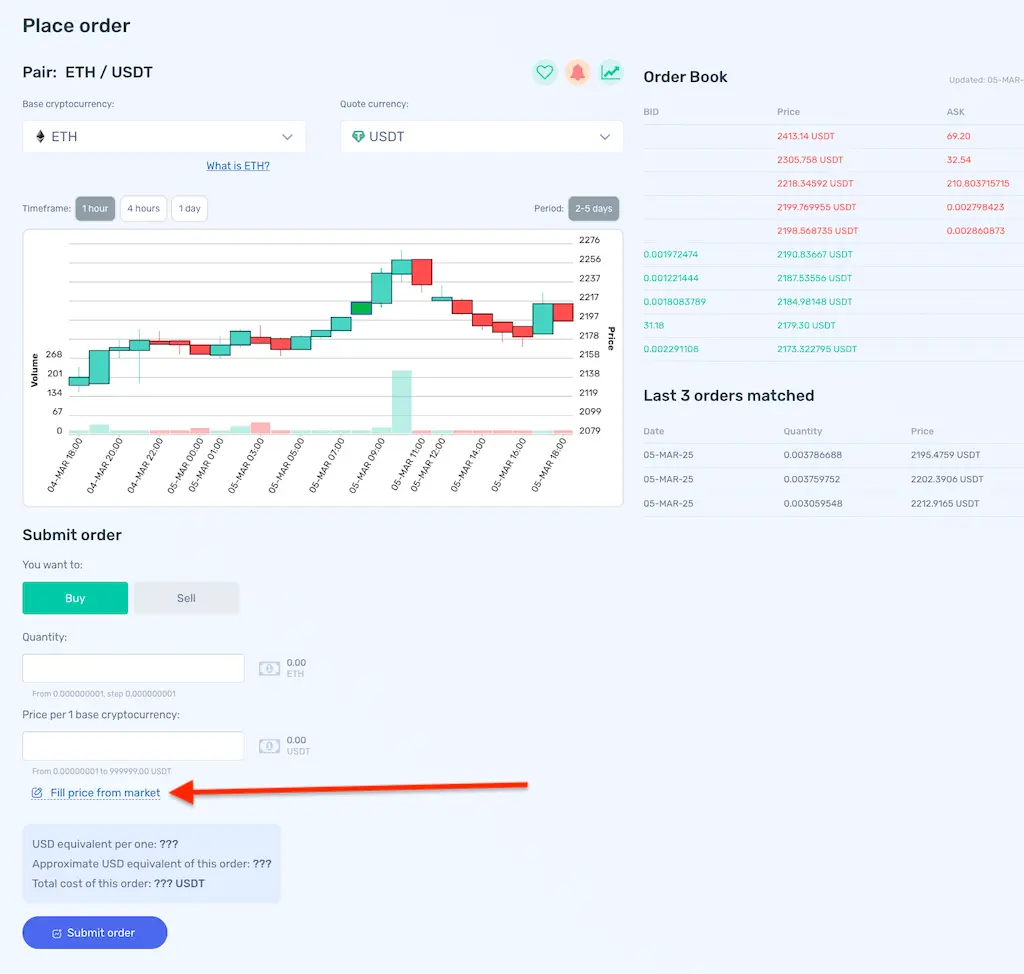
To automatically fill in the price field with the best available BID/ASK market price, click on the “Fill price from market”.
What Should I Do If I Can’t Submit My Order?
Sometimes, you might encounter a fixed spread in the market. For example, a spread ranges from 555 to 999 (or another range). If this happens, please reach out directly to the related crypto project team and ask them to resolve this issue.
Wait for Order Execution
If you select a market price (by clicking “Fill price from the market”), the trade will execute immediately and your balance will update; you can then withdraw funds or use them for further trades. Successfully executed (Matched!) trade orders are visible in the “My Orders” section.
However, If you do not select a market price, the trade order might not be executed immediately, but you can monitor its status in both the “My Orders” tab and the Order Book. For example, the ETH/USDT price would need to increase for a sell order to be matched.
Fees
Depositing cryptocurrencies is always free. Depending on your chosen Price Plan, only the specified trade fees and withdrawal commissions will apply.
Withdrawing from Tokpie
Always exercise caution when withdrawing cryptocurrencies. Once a withdrawal transaction is sent and confirmed, it cannot be canceled or reversed.
To withdraw cryptocurrency from your Tokpie account, follow these simple steps:
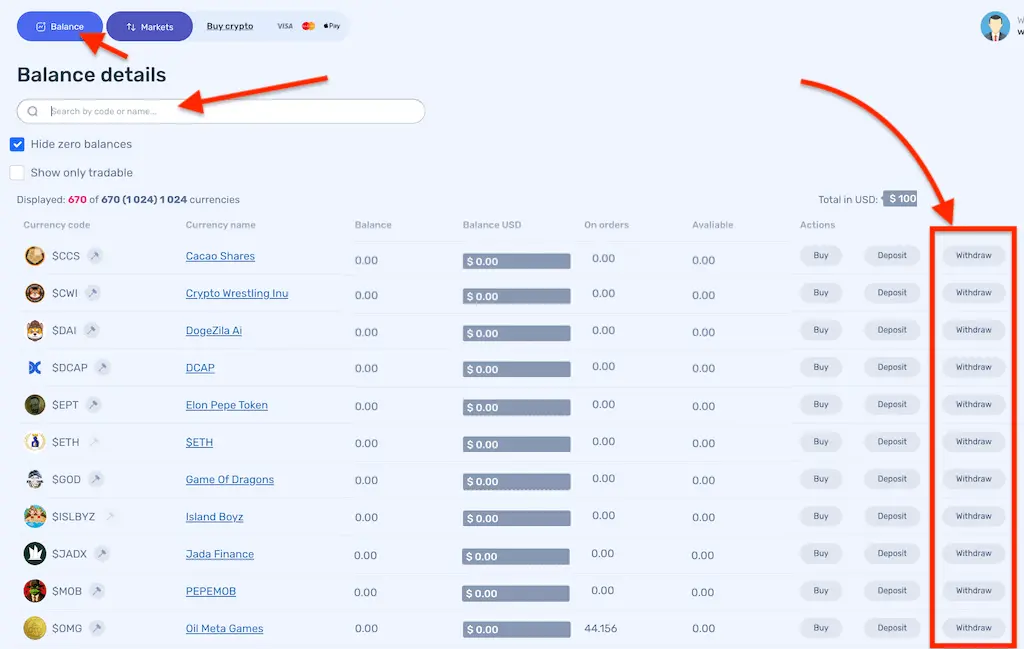
- Log in to your Tokpie account and go to Balance Details.
- Locate the cryptocurrency asset you want to withdraw.
- Click the Withdraw button located to the right of the asset.
- Choose your preferred network: ERC20 (Ethereum), BNB Smart Chain BEP20 (BSC), Solana (SOL), BASE, Tron (TRC20), Arbitrum One, Polygon PoS, or TON. Then, fill in the withdrawal Address and Amount fields.
- Click Submit to proceed.
- Verify your withdrawal request by clicking the confirmation link sent to your registered email.
Also, learn about the withdrawal fees.
How long does it take to withdraw?
Withdrawal processing typically takes less than 24 hours, depending on blockchain confirmations and network traffic. Tokpie processes withdrawal requests promptly, ensuring minimal waiting time.
How to Cancel My Order?
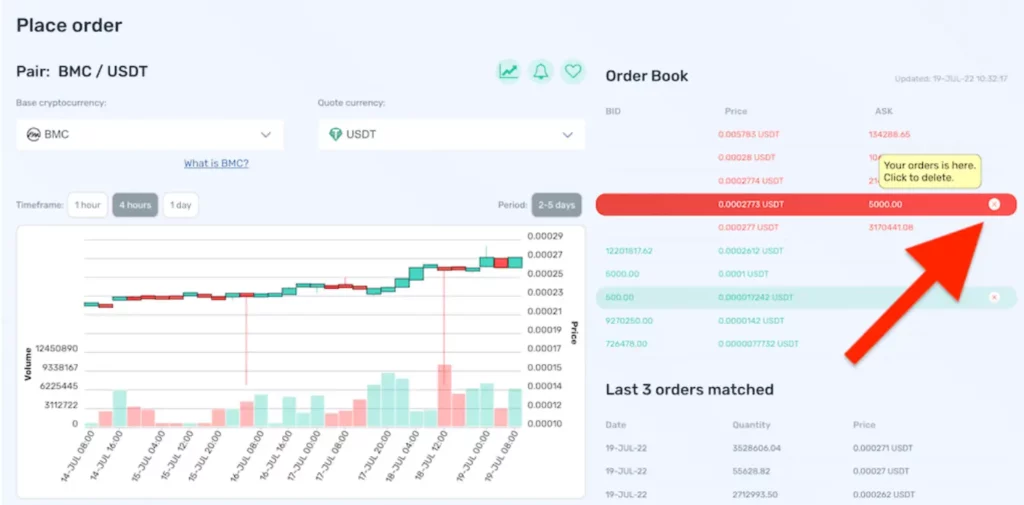
To cancel a trade order, simply click the (X) icon next to your order on the market page, as illustrated below. Confirm your cancellation by clicking the Delete button in the confirmation popup.
Alternative Method for Cancelling an Order
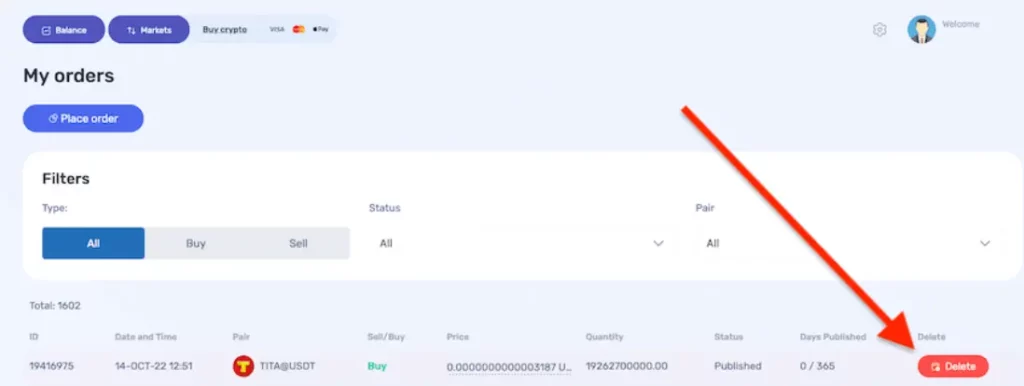
You can also cancel your trade orders through the My Orders section:
- Navigate to the My Orders section.
- Locate the specific order you’d like to cancel.
- Click on the Delete button as highlighted in the image below, and confirm your action.
Where Can I See My Balance?
You can check the amount of crypto assets available on your Tokpie account on the Balance page at any time.
How Can I Check My Operations?
Also, you can check all your deposit, withdrawal, and trade operations on the History section.
Conclusion
Trading cryptocurrencies on Tokpie is convenient, secure, and efficient. By following this guide, you’re equipped with all the knowledge needed to trade effectively. Start your cryptocurrency journey today and discover the full range of trading opportunities available on Tokpie!
Frequently Asked Questions (FAQ)
To change your password, navigate to the profile page and enter your current password along with the new one. Your initial (current) password can be found in the email you received from Tokpie at the time of registration.
If you’re having trouble accessing your Tokpie account, visit https://tokpie.com/restorepwd/. Then, enter your registered email address and captcha. After that, click Restore.
Depositing funds to Tokpie is always free. To learn more about trading and withdrawal fees, please visit the dedicated fees page.
You don’t need to download an app, as the Tokpie exchange is fully mobile-compatible. Simply sign up or log in using your smartphone’s browser. All you need is an active internet connection. Tokpie works smoothly on any smartphone, even older models.